
A 60-sheet plan set can look impossible to get through until you realise nobody reads it cover to cover. Experienced estimators move through it in a fixed order, checking specific things on each sheet (title block, legend, site plan, floor plan, elevations, sections, then details).
Most contractors pick up how to read construction plans job by job, learning the hard way what a missed detail costs on site.
This guide gives you the shortcuts, including the reading order estimators use, how Australian metric scales work, what the common symbols mean by trade and how to move through a large digital plan set without losing your place.
Key Takeaways
- Read plans in a fixed order: title block, legend, site plan, floor plan, elevations, sections, details.
- Australian plans use metric scales like 1:100 and 1:50. Calibrate scale first in any digital tool before measuring anything.
- Every trade has its own construction plan symbols. Check the legend on every job rather than assuming a symbol means what it meant last time.
- On large plan sets, use the drawing index and isolate only the sheets relevant to your trade.
- Plan reading is a habit you build over a few jobs, not a qualification you need first.
Understanding the Types of Drawings in a Plan Set
A typical construction plan set contains five main drawing types: site plans, floor plans, elevations, sections and detail drawings, plus schedules that list doors, windows, fixtures and finishes.
Each one answers a different question, and knowing which sheet to check saves you from looking through the whole set for one number.
The site plan shows the building's position on the block, including boundaries, setbacks, driveways and where services enter the site.
The floor plan is the one most people picture when they think of a building plan. It contains walls, rooms, and door and window openings, viewed from directly above.
Elevations show each external face of the building as if you were standing in front of it, which is where you'll check cladding, roof pitch and window heights.
Sections cut vertically through the building to show what's happening inside a wall or floor build-up, which is useful for anything measured by depth or height rather than area.
Detail drawings zoom into one specific junction, like a step-down at a wet area or a fixing point, at a much larger scale than the rest of the set.
Schedules do the job that would otherwise clutter the drawings themselves. A door schedule lists every door's size, type and hardware in one table instead of squeezing that information onto the floor plan.
For estimating, schedules are often faster to work from than the drawings, once you've confirmed the quantities against the plan itself.
How to Navigate a Digital PDF Plan Set
Efficiently navigating a PDF plan set involves using the drawing index to jump between sheets, using layers where they're available to filter out trades you don't need, zooming in for detail without losing your place and keeping the title block visible so you can confirm you're working from the latest revision.
The drawing index, usually one of the first sheets in the set, lists every sheet number and its content. It's the fastest way to get from "I need the electrical layout for the first floor" to the actual sheet, without paging through 50 drawings to find it.
Sheet numbering follows a logical pattern too, usually a prefix for the discipline (A for architectural, S for structural, E for electrical) followed by a number, so you can often guess roughly where a sheet sits before you even open the index.
Some digital plan sets include layers, letting you toggle whole trades on and off so you're only looking at what matters to your quote. Not every PDF has them, but when they're there, they cut a lot of visual noise from a busy commercial plan.
Zooming is where digital plans beat paper. You can pull a cramped detail up full screen instead of squinting at a printed A1 sheet, one of the reasons more contractors are moving off paper plans altogether.
Whichever tool you're using, keep an eye on the title block in the corner of every sheet. It carries the revision number and date, and working from a superseded sheet is one of the easiest ways to price the wrong job.
Reading Scale and Dimensions on Australian Plans
Australian construction plans use metric scales such as 1:100 and 1:50, where the first number represents the drawing and the second represents the real-world dimension.
On a 1:100 plan, 10 mm on screen equals 1,000 mm, or one metre, in real life. On a 1:50 plan, that same 10 mm represents 500 mm.
Conventions like these, along with the line types, symbols and dimensioning methods used across Australian project documentation, sit under AS 1100, the Australian Standard for technical drawing.
Scale only matters once you can trust it, so calibrating scale is the first thing to do in any digital takeoff tool, before measuring a single item.
Calibrating means picking a dimension that's already stated on the plan, usually a wall length or an overall building dimension, clicking each end of it in your software, then entering the real-world value. It takes about 30 seconds. If you skip it or calibrate against the wrong reference, every measurement you take afterwards is wrong by the same margin, all the way through to the quote.
A lot of the unease around reading construction drawings often comes from this issue. Scale itself isn't hard to understand and mistakes don't just announce themselves. You're unlikely to find out your numbers are wrong until the job runs short on materials.
Common Symbols and Abbreviations by Trade
Every trade has a handful of construction plan symbols you'll see on almost every job, plus a longer tail you'll need the legend for. The legend is always your first stop.
Don't assume a symbol means what it meant on the last plan set. Conventions vary slightly between firms and drafting software, and AS 1100.301, the architectural drawing standard, sets the baseline rather than a single universal picture.
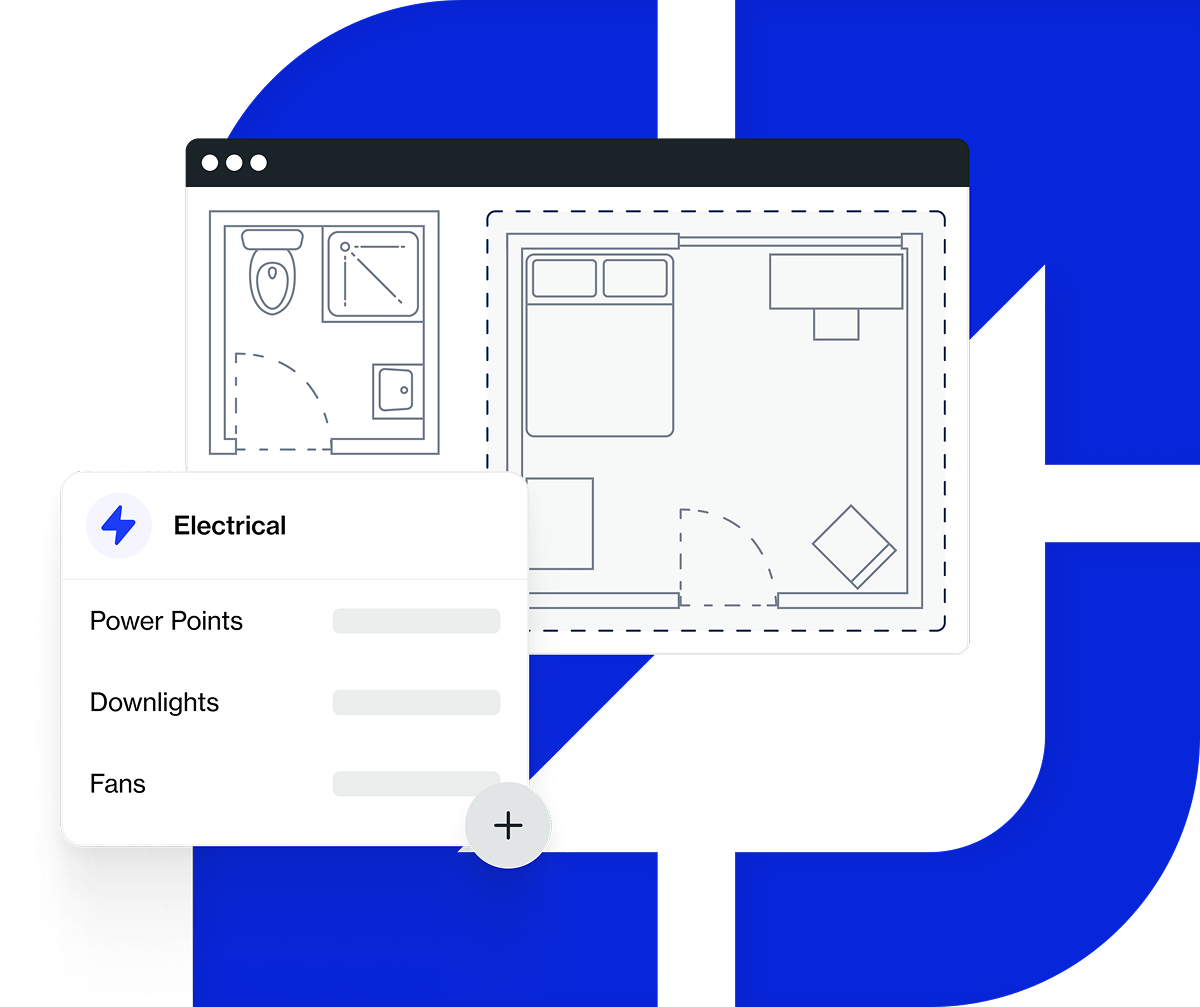
Electrical symbols are usually the densest on a commercial plan: PP or GPO for a general purpose outlet (a power point), S for a switch, L for a light fitting.
Plumbing plans use simplified outlines for basins, WCs and sinks, drawn roughly to scale rather than as pure symbols.
Structural drawings mark beams and columns with their own glyphs, cross-referenced to a schedule that carries the actual size and grade.
General symbols carry through every sheet. A level marker gives a height reference (a reduced level, or RL), and a section arrow points to where a cutaway detail comes from, with a sheet number to follow it to.
For a closer look at how these symbols come together on a live job, see our guide to estimating an electrical job from the plan set.
On a dense commercial layout, hundreds of individual GPO, light and switch symbols is normal, and it's exactly the kind of repetitive counting that gets faster with the right tool rather than a sharper eye.
Tips for Working Through Large Plan Sets
On large plan sets, 50 sheets or more is common on a mid-size commercial job, four habits keep you moving instead of stuck. Use the drawing index to find sheets fast rather than scrolling.
Cross-reference the drawings against the specifications and schedules, since a lot of the detail that affects pricing is in those documents, not on the plan itself.
Track revisions through the title block on every sheet you touch, not just the ones you remember checking last time. And isolate only the sheets relevant to your trade, using layers or a simple naming convention, so you're not carrying 50 irrelevant pages around in your head while you measure.
It's not about reading more quickly but reading less of what doesn't apply to your quote, which has much the same effect.
How Groundplan Helps You Read Plans More Quickly
Groundplan lets you open any PDF plan, calibrate the scale in seconds and start measuring straight away, with count, length and area tools mapped to the most common estimating actions.
Upload the plan, calibrate against a known dimension, then count fixtures, measure runs or calculate areas directly on the drawing instead of transferring numbers to a spreadsheet by hand.
For plans with hundreds of repeating symbols, electrical, security and AV layouts especially, Count Assist automates the counting itself, so you're checking its work rather than doing it fixture by fixture.
And if you're new to digital plan reading altogether, Groundplan's training is free and unlimited. You can walk through your first real plan set with someone who's done it before, rather than working it out alone.
Frequently Asked Questions
What's the order to read a construction plan?
Start with the title block to confirm you're on the right, current sheet, then the legend so you know what the symbols mean on this particular set. From there, look at the site plan, floor plan, elevations, sections, then details. Estimators repeat this order on every job because it moves from general context down to the specific numbers a quote actually needs.
What is AS 1100?
AS 1100 is the Australian Standard for technical drawing, covering the line types, symbols and dimensioning conventions used across Australian project documentation. AS 1100.101 sets the general principles and AS 1100.301 covers architectural drawing specifically. You won't need to read the standard day to day, but it's the reason plans drawn by different firms still follow broadly the same conventions.
What does a 1:100 scale mean?
It means 1 mm on the drawing represents 100 mm in real life, so 10 mm on the plan equals 1 metre on site. A 1:50 plan is drawn twice as large: the same 10 mm represents only 500 mm.
How do I calibrate scale in digital takeoff software?
Pick a dimension that's already labelled on the plan, usually a wall length or an overall building measurement. Click each end of that dimension in your software, then enter the real-world value it represents. The tool uses that to work out the scale for the whole sheet, and it takes about 30 seconds.
Why are construction plans so hard to read at first?
Mostly due to volume. There are a lot of symbols, several different drawing types and small variations between how different firms draw the same thing. Reading construction drawings gets easier fast with practice, and most of what feels overwhelming in a first plan set becomes automatic by the fifth.
If you want structured practice beyond the job site, TAFE NSW's building and construction library guide has an excellent collection of plan reading resources.
What if I can't find a detail on the plan set?
Check the drawing index and follow the section and detail-reference markers on the relevant sheet, since they point directly to where that detail is drawn. If it's missing from the set, raise a Request for Information (RFI) with the builder or project manager rather than guessing.
Turn Plan Reading Into a Repeatable Habit
Reading construction plans stops feeling like a specialist skill once you've been through a handful of sets (looking at title block, legend, site plan, floor plan, elevations, sections and details, in that order, every time).
Calibrate scale before measuring anything, keep the legend open while you check construction plan symbols and use the drawing index to move through large sets instead of scrolling blind.
The fastest way to build that habit is on a real job. Start a free Groundplan trial and open one of your usual PDF plan sets, then calibrate the scale and run a quick takeoff to see how much quicker the process is once the plan itself stops being the bottleneck.